


Photo Video Maker with Music
3.040.00 Reviews
App Specs
- Version
- 1.1.32
- Updated On
- License
- Free
- Downloads
- 10,000,000+
- Developer
- Think It Tech
- Categories
- Video Players & Editors
- Platform
- Android
Screenshots
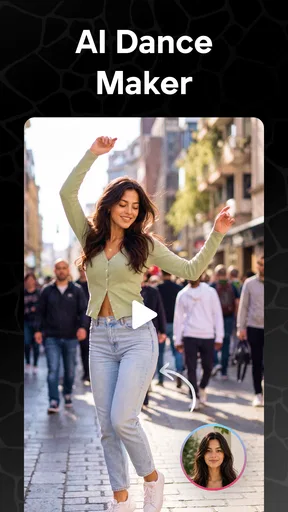
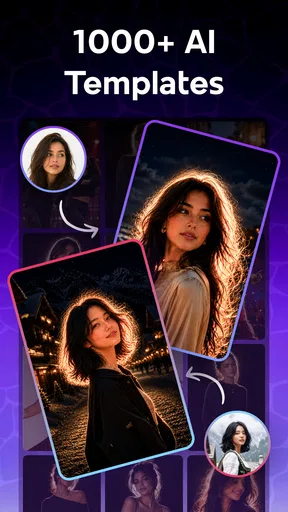

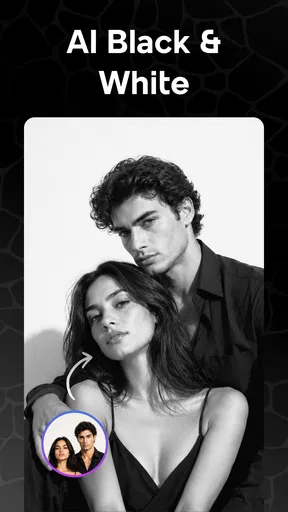

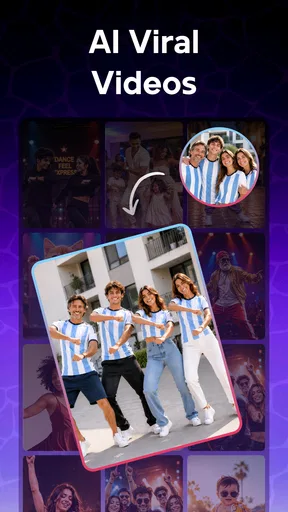
 Analysis by AppCompare
I often want to turn a handful of phone photos into something more engaging than a gallery album, without opening a complicated desktop editor. That is the kind of job Photo Video Maker with Music is meant to handle: building a short montage with pictures, audio and visual touches. My overall impression is that it aims for quick, approachable editing rather than fine-grained control, which makes it most appealing when the goal is to finish and share a simple video.
What to expect from its pace
The first thing that caught my eye was how user-friendly the interface is. I mean, even if you’re not tech-savvy, you’ll feel right at home. After installing the app, I was greeted with a clean and intuitive layout. It’s as if the developers knew exactly what we needed, without any unnecessary clutter.
That straightforward layout matters for speed as much as convenience. A montage usually involves several small decisions—choosing pictures, putting them in sequence, finding a soundtrack and checking the result. Keeping those jobs close to the central editing task helps the process feel less intimidating than starting with a traditional timeline editor. I would approach it as a tool for making a finished, modestly edited video efficiently, not as a promise that every project will render instantly.
The app allows you to select photos from your gallery and arrange them in any order you like. Adding music is a breeze too. Just pick a track from the app’s library or upload your own. Honestly, the range of music available is impressive, covering everything from pop hits to classical pieces.
A useful way to keep a project moving is to decide on the story before opening the editor. For a birthday recap, for example, I would pick the beginning, middle and closing moments first, then add the supporting shots between them. That small bit of preparation makes arranging the sequence more purposeful and avoids spending the editing session repeatedly swapping similar photos. It also gives the soundtrack a clearer role: a track can support the mood of the whole montage instead of being chosen only because it sounds good on its own.
Editing choices, heavier projects and reliability
I find that the most useful way to judge a photo editor is to test more than its first few taps: a tidy sequence can feel quick, while a project with lots of revisions asks more of both the workflow and the device. I’d pay particular attention to how comfortably I can review changes and resume after a pause, then use those impressions to decide how ambitious the montage should be.
When the project gets busy
Now, let’s talk about customization. The app doesn’t skimp on features. You can add text, apply filters, and even adjust the speed of the video. I spent a good chunk of time experimenting with the different effects and transitions. The variety is enough to keep anyone busy, and it really lets you put a personal touch on your creations.
Worth Reading Before You Choose

Flipboard Shows What News Apps Must Do Beyond the Feed

Switching to Android Auto Means Rethinking Your Driving Routine

Google Calendar Makes a Crowded Week Easier to Manage

Ludo King Makes the Most of the Minutes Between Plans

Baby Panda World Brings Quick Play to Modern Phones, but Its Game Library Feels Busy

ESPN’s Live Game View Makes Following Close Games Easier
Those options are most useful when they serve a clear purpose. A short title can explain where a set of photos was taken, while a restrained filter can help pictures from different lighting conditions feel more consistent. Speed changes can add energy, but I would use them selectively: changing pace too often can make a family slideshow feel restless rather than lively. The practical trade-off is that each extra effect is another choice to review, so a simple visual style can be faster and easier to follow than using every available treatment.
A project can feel heavier when it contains many images, several edits and a soundtrack, especially if I keep changing the order and replaying the preview. I would build a large montage in passes: first choose and sequence the photos, then settle the music, and only afterward add text and effects. This makes it easier to spot whether the story works before polishing details. If the preview begins to feel less responsive, trimming the project to the images that matter most is a sensible first step; it also tends to make the final video more focused.
One of the highlights for me was the ability to preview edits in real-time. It’s super helpful to see changes instantly, so you know exactly how your video will look once it’s done. Plus, the app saves your progress automatically, which is a lifesaver if you accidentally close it.
Previewing is especially valuable for checking details that are easy to miss while editing: whether a caption stays on screen long enough to read, whether a transition interrupts the rhythm, and whether the selected music feels suited to the image sequence. I would watch the whole montage once before exporting rather than relying on a few quick checks of individual moments. Automatic saving also makes it less stressful to pause between editing sessions, though I would still confirm that the latest changes appear in the project before leaving a long session behind.
Reliability and export decisions
Once you’re happy with your video, sharing it is as simple as hitting a button. The app offers direct sharing to social media platforms like Instagram and Facebook, or you can save it to your device. I found this feature incredibly convenient, especially when I wanted to share my video with friends and family quickly.
For a reliable workflow, I would save the finished video to the device before treating a social post as the only copy. A local version is handy if I later want to share it somewhere else, send it privately, or keep it with the original photos. It also gives me a chance to check the exported result independently of the editing preview. For a time-sensitive post, I would leave room for this final review rather than assuming that a quick export and share will always be the best route.
Another neat aspect is the export quality. You can choose from various resolutions, including HD, ensuring your video looks great no matter where you share it. This is perfect for anyone wanting professional-looking results without a lot of hassle.
Resolution is a practical choice, not simply a setting to push as high as possible. A larger output can be preferable when the video will be watched on a bigger screen, while a smaller one may be more convenient when the priority is sharing or keeping a lightweight copy. I would match the export to its destination and, if storage or time is a concern, avoid making a high-resolution version just for a casual group chat. Checking the saved result once is worthwhile: it confirms that the pacing, captions and music work together outside the preview.
Who will get the most from it
As a photo-focused editor, this app makes the most sense for someone who wants to turn a group of still images into a compact story without learning a complex editing system. A parent assembling a school-event recap, a traveler putting together a few highlights, or a friend making a birthday greeting can benefit from the combination of ordering, music, text and effects. It is also a reasonable starting point for a first montage because the workflow is easier to approach than a dense multitrack timeline.
Consider an everyday use: after a weekend outing, I might choose a few photos of the journey, one or two details from the day, and a final group shot. I would arrange them in that order, add a short opening caption, choose music that fits the mood, and preview the result before saving. The useful discipline is to leave out near-duplicates. A smaller set of distinct images usually tells the story more clearly and reduces the time spent sorting and polishing.
Someone who regularly edits talking-head clips, needs precise control over many video layers, or depends on detailed audio mixing may be better served by a full timeline-based editor. Likewise, a person who wants a completely untouched photo slideshow may find the effects and customization unnecessary. The app’s appeal is in the middle ground: more personal than a bare sequence of pictures, but less demanding than a professional editing workflow.
How it fits among editing alternatives
Compared with the usual options in mobile video editing, a photo montage maker has a narrower but more approachable job. A general-purpose editor is typically the better choice when a project depends on cutting footage, coordinating several audio tracks or making precise timing changes. A built-in gallery tool can be quicker for a very basic memory reel, but may offer fewer ways to shape the mood. Here, the value is the ability to combine photo order, music, captions, filters and transitions without turning the task into a technical project.
That focus brings a trade-off: flexibility is not the same as depth. If you are trying to match edits to individual beats, maintain detailed control over every clip, or refine a sequence for a polished promotional video, I would choose an editor designed around a full timeline. For a personal recap or a simple social post, this app’s lighter approach is more inviting. The right choice depends less on how many effects are available and more on whether your project is built mainly from photos or from footage that needs close editing.
Device fit, costs and expectations
The app is made by Think It Tech and sits in the video editing category. It is free to install, with in-app purchases ranging from $5.99 to $239.99 per item, so I would check the purchase details shown in the app before committing to anything. The content rating is Everyone. That makes it broadly suitable for ordinary family use, although adults should still review any purchase prompts if a child will be using the device.
It was released on June 23, 2022, and its current version is 1.1.13. The stated minimum operating-system requirement is 7.0. The developer’s version history and device support can change over time, so I would make sure the app is compatible with my own device before planning a time-sensitive project. As with any editor that previews and exports media, I would also keep some free storage available, particularly for a longer montage or a higher-resolution output. That is a sensible device-management habit, not a guarantee about how much space a particular project will need.
Its scale gives a useful but mixed signal: it has over one million installs, while its average rating is 3.2 from around 540 ratings. I would read that as a reason to try it with a small, low-stakes project before relying on it for an important event. The rating does not tell me which part of the experience every person liked or disliked, so my own test would be practical: create a short montage, preview it, save it, and see whether the workflow suits the way I edit.
My performance verdict
In a nutshell, Photo Video Maker with Music is a useful option for anyone looking to dive into photo-based video creation. It’s versatile, easy to use, and packed with features that cater to beginners and casual creators. I’ve had a blast experimenting with it, and I think it is most appealing when the project is personal, short and built around still images rather than intricate footage.
I would recommend trying it for a small slideshow before choosing it for a large or important edit. That quick test answers the questions that matter in practice: whether arranging images feels comfortable, whether the preview is clear enough for your needs, and whether the export fits where you plan to share it. If you need precise control or work mainly with video clips, a more advanced editor is the better fit. If your aim is to give a set of photos a soundtrack and a bit of personality without a steep learning curve, this is a sensible place to start.
So, if you’re ready to make a video from photos and want a straightforward way to add music and a few creative touches, give this app a try. I’d keep the first project simple, pay attention to the preview, and choose the export that matches how you intend to watch or share it. That approach plays to the app’s strengths while keeping expectations grounded.
Pros
- User-friendly interface for easy navigation.
- Wide range of music options to choose from.
- High-quality video export without watermarks.
- Supports various video formats and resolutions.
- Frequent updates with new features added.
Cons
- Limited free version features available.
- Occasional ads can interrupt workflow.
- Requires internet for some music downloads.
- Some effects are locked behind a paywall.
- Not compatible with older device models.
FAQs for Photo Video Maker with Music
What features does Photo Video Maker with Music offer?
Photo Video Maker with Music provides a comprehensive set of features including the ability to combine photos and videos seamlessly, add music from your personal library, and apply various transitions and effects. Users can also customize their creations with text overlays, stickers, and filters to enhance the visual appeal.
Is Photo Video Maker with Music user-friendly for beginners?
Yes, the app is designed with an intuitive interface that makes it accessible for users of all experience levels. The step-by-step guide and simple drag-and-drop functionality allow beginners to easily create multimedia projects without needing extensive editing skills.
Can I use my own music in the videos I create?
Absolutely! Photo Video Maker with Music allows you to import your own music tracks to personalize your videos. You can also choose from a selection of in-app music options. Ensure you have the appropriate rights or permissions for any music you use to avoid copyright issues.
Are there any in-app purchases or subscriptions required?
While Photo Video Maker with Music offers a free version with basic features, there are in-app purchases and subscription options available for users who want access to premium features, such as additional effects, music tracks, and more export options. These can enhance your editing experience significantly.
What are the export options and quality for completed projects?
The app provides multiple export options, allowing you to save your videos in various resolutions, including HD quality. You can easily share your creations directly to social media platforms or save them to your device for future viewing or editing, ensuring flexibility in how you use your finished projects.


